Showing posts with label SSIS. Show all posts

Friday, October 10, 2014

CDC in SSIS for SQL Server 2012

SQL Server 2012 introduces new components that make it easier to do Change Data Capture (CDC) using SSIS. This blog post provides a quick walkthrough of how to use them.

New Task and Components
CDC Control Task
The CDC Control task is used to control the life cycle of change data capture (CDC) packages. It handles CDC package synchronization with the initial load package, the management of Log Sequence Number (LSN) ranges that are processed in a run of a CDC package. In addition, the CDC Control task deals with error scenarios and recovery.

CDC Source
The CDC source reads a range of change data from CDC change tables and delivers the changes downstream to other SSIS components.

CDC Splitter
The CDC splitter splits a single flow of change rows from a CDC Source component into different data flows for Insert, Update and Delete operations. It is essentially a “smart” Conditional Split transform that automatically handles the standard values of the __$operation column.


Walkthrough

Database Setup

For sample data, we will create a new database (CDCTest), and select a subset of rows from the AdventureWorksDW DimCustomer table into a sample table (DimCustomer_CDC). This will become the Source table for this demo.

USE [CDCTest]
GO

SELECT * INTO DimCustomer_CDC
FROM [AdventureWorksDW].[dbo].[DimCustomer]
WHERE CustomerKey < 1000

We then enable CDC on the database, and create a capture instance for the DimCustomer_CDC table.

USE [CDCTest]
GO

EXEC sys.sp_cdc_enable_db
GO

-- add a primary key to the DimCustomer_CDC table so we can enable support for net changes
IF NOT EXISTS (SELECT * FROM sys.indexes WHERE object_id = OBJECT_ID(N'[dbo].[DimCustomer_CDC]') AND name = N'PK_DimCustomer_CDC')
  ALTER TABLE [dbo].[DimCustomer_CDC] ADD CONSTRAINT [PK_DimCustomer_CDC] PRIMARY KEY CLUSTERED 
(
    [CustomerKey] ASC
)
GO

EXEC sys.sp_cdc_enable_table 
@source_schema = N'dbo',
@source_name = N'DimCustomer_CDC',
@role_name = N'cdc_admin',
@supports_net_changes = 1

GO

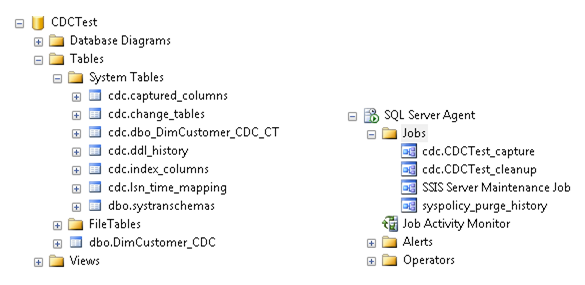
We can see that a number of tables have been added under the cdc schema, and that SQL agent jobs have been created to capture changes being made to this table.


For the Destination, we’ll create a separate table – DimCustomer_Destination – with the same structure as the Source.

SELECT TOP 0 * INTO DimCustomer_Destination
FROM DimCustomer_CDC

In real life this would be in a separate database, and usually on a completely different server (otherwise, why are you mirroring the changes?), but for the purposes of this walkthrough, we’ll keep it all together.

We’re ready to start consuming changes with SSIS.

SSIS Packages

Our processing logic will be split into two packages – an Initial Load package that will read all of the data in the source table, and an Incremental Load package that will process change data on subsequent runs.

Initial Load

This package will only be run once, and handles the initial load of data in the source table (DimCustomer_CDC). The package uses the following logic:
  • Use the CDC Control Task to mark the initial load start LSN
  • Transfer all of the data from the source table into our destination table
  • Use the CDC Control Task to mark the initial load end LSN

Package creation steps:

Create a new SSIS package

Add a CDC Control Task. Double click the Control Task to bring up the editor.

  • Add a new ADO.NET connection manager for the Source database
  • Set CDC Control Operation to Mark initial load start
  • Create a new package variable (CDC_State) to hold the CDC state information.
  • Set the connection manager for the Destination database
  • Create a table for storing the state ([cdc_states]). This table will be used to track the CDC load information, so that you only pick up new changes each time the incremental load package is run. It will be created in the Destination database.
  • Set the state name (CDC_State). This value acts as a key for the CDC state information. Packages that are accessing the same CDC data should be using a common CDC state name.


Add a Data Flow Task, and connect it to the CDC Control Task

Configure the Data Flow task to transfer all of the data from the Source to the Destination

Add a second CDC Control Task. Connect the success constraint of the Data Flow Task to it.

Configure the second CDC Control Task with the same settings as the first one, except the CDC Control Operation should be set to Mark initial load end.


The package will now look like this:


When we run the package, all of the data currently in the Source table will be transferred to the Destination, and the initial CDC state markers will be created. If we select from the cdc_states table, we can see that there is now a “CDC_State” entry. Note, the state entry is an encoded string that is used by the CDC components – you should not have to edit or deal with it directly.

Incremental Load

This package will be run every time we want to grab the latest changes from our Source table. It will store the CDC state every time it runs, ensuring that we only pick up new changes every time we run the package. It will use the following logic:
  • Create staging tables for updated and deleted rows (so we can process the changes in a batch – more about that below)
  • Use a CDC Control Task to retrieve the CDC state from the destination table
  • Use a CDC Source to retrieve our change data
  • Use a CDC Splitter transform to redirect the rows based on their operation (New, Updated, and Deleted)
  • Insert the new rows into the Destination table
  • Stage the Updated and Deleted rows
  • Process the Updated and Deleted rows using Execute SQL Tasks
  • Use a CDC Control Task to update the CDC state

Package creation steps:

Add an Execute SQL Task to create staging tables
  • Create a connection manager for the Destination database (set the ConnectionType to ADO.NET to reuse the same connection manager used by the CDC Control Task)
  • Enter the SQL statements to create two staging tables that match the Destination table. For example:

IF NOT EXISTS (SELECT * FROM sys.objects WHERE object_id = OBJECT_ID(N'[dbo].[stg_DimCustomer_UPDATES]') AND type in (N'U'))
BEGIN
   SELECT TOP 0 * INTO stg_DimCustomer_UPDATES
   FROM DimCustomer_Destination
END

IF NOT EXISTS (SELECT * FROM sys.objects WHERE object_id = OBJECT_ID(N'[dbo].[stg_DimCustomer_DELETES]') AND type in (N'U'))
BEGIN
   SELECT TOP 0 * INTO stg_DimCustomer_DELETES
   FROM DimCustomer_Destination
END

Add a CDC Control Task. Connect the Execute SQL task to the CDC Control Task
  • Create a connection manager for the Source database
  • Set the CDC Control Operation to Get processing range
  • Create a new CDC state variable (CDC_state)
  • Create a connection manager for the Destination database
  • Select the state table (this was created by the Initial Load package) – [dbo].[cdc_states]
  • Set the State name – this must match what was used in the Initial Load package (CDC_State)


Add a Data Flow Task. Connected it to the CDC Control Task.

Add a CDC Source component
  • Set the Connection Manager to the Source database
  • Select the source table (DimCustomer_CDC)
  • Set the CDC processing mode to Net
  • Select the CDC_State variable
  • Click the Columns tab to make sure we’re pulling back all of the right information, then click OK.


Add a CDC Splitter transform

Add an ADO.NET Destination – rename it to “New rows”
  • Connect the InsertOutput of the CDC Splitter to the “New rows” destination
  • Double click the “New rows” destination to bring up its editor
  • Set the Destination connection manager, and select the main destination table (DimCustomer_Destination)
  • Click the Mappings tab. The columns should automatically match by name. The CDC columns (the ones starting with __$) can be ignored

Add two more ADO.NET Destinations, mapping the DeleteOutput to the stg_DimCustomer_DELETES table, and UpdateOutput to stg_DimCustomer_UPDATES. We will update the final Destination table using batch SQL statements after this data flow. An alternative design here would be to use an OLE DB Command transform to perform the updates and deletes. The OLE DB Command approach has some performance problems though, as the transform operates on a row by row basic (i.e. it issues one query per row).


Back in the Control Flow, add two Execute SQL tasks. These tasks will perform the batch update/delete using the data we loaded into the staging tables. The queries look like this (note, I took columns out of the update statement to keep things short – normally you’d include all of the columns here):

-- These queries go into the incremental load package, and do not need to be run directly
-- batch update

UPDATE dest
SET 
    dest.FirstName = stg.FirstName, 
    dest.MiddleName = stg.MiddleName,
    dest.LastName = stg.LastName, 
    dest.YearlyIncome = stg.YearlyIncome
FROM 
    [DimCustomer_Destination] dest, 
    [stg_DimCustomer_UPDATES] stg
WHERE 
    stg.[CustomerKey] = dest.[CustomerKey]

-- batch delete
DELETE FROM [DimCustomer_Destination]
  WHERE[CustomerKey] IN 
(
    SELECT [CustomerKey]
    FROM [dbo].[stg_DimCustomer_DELETES]
)

Add a CDC Control Task. It should have the same settings as the first CDC Control Task in the package, except the CDC control operation is Mark processed range.

Finally, add an Execute SQL Task to drop the staging tables. Alternatively, you can leave the staging tables in place, just truncate them.

Your package should look like this:


Running the Incremental Load Package

If we run the Incremental Load package at this point, it should run successfully, but not transfer any rows. That’s because we haven’t made any changes yet to the Source table. Let’s do that now by running the following script against the Source table:

USE [CDCTest]
GO

-- Transfer the remaining customer rows
SET IDENTITY_INSERT DimCustomer_CDC ON

INSERT INTO DimCustomer_CDC
(
       CustomerKey, GeographyKey, CustomerAlternateKey, Title, FirstName, 
       MiddleName, LastName, NameStyle, BirthDate, MaritalStatus, 
       Suffix, Gender, EmailAddress, YearlyIncome, TotalChildren, 
       NumberChildrenAtHome, EnglishEducation, SpanishEducation,
       FrenchEducation, EnglishOccupation, SpanishOccupation, 
       FrenchOccupation, HouseOwnerFlag, NumberCarsOwned, AddressLine1, 
       AddressLine2, Phone, DateFirstPurchase, CommuteDistance
)
SELECT CustomerKey, GeographyKey, CustomerAlternateKey, Title, FirstName, 
       MiddleName, LastName, NameStyle, BirthDate, MaritalStatus, 
       Suffix, Gender, EmailAddress, YearlyIncome, TotalChildren, 
       NumberChildrenAtHome, EnglishEducation, SpanishEducation,
       FrenchEducation, EnglishOccupation, SpanishOccupation, 
       FrenchOccupation, HouseOwnerFlag, NumberCarsOwned, AddressLine1, 
       AddressLine2, Phone, DateFirstPurchase, CommuteDistance
FROM [AdventureWorksDW].[dbo].[DimCustomer]
WHERE CustomerKey &lt; 500

SET IDENTITY_INSERT DimCustomer_CDC OFF
GO

-- give 10 people a raise
UPDATE DimCustomer_CDC 
SET 
    YearlyIncome = YearlyIncome + 10
WHERE
    CustomerKey &lt;= 11000 AND CustomerKey &gt;= 11010

GO

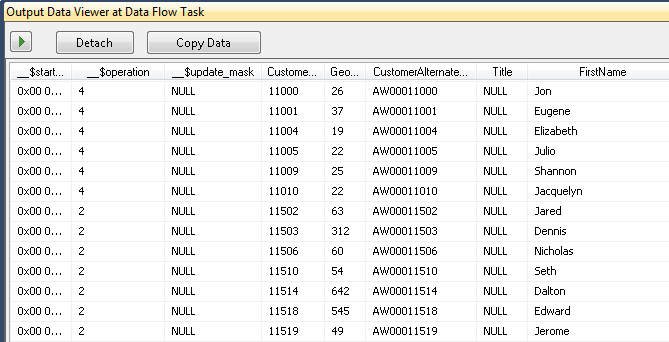
If we enable a Data Viewer in the Incremental Load package and run it, we’ll see that the CDC Source picks up all of the rows we’ve changed. We can see that some of the rows are __$operation = 4 (update), while the rest are 2 (new rows).


When the package completes, we see that the data flow moved a total of 17,995 rows (11 updates, and the rest are inserts).


Because the CDC Control Task updated LSN values stored in the CDC state table, if we run the package a second time (without making any changes to the source table), we see that no rows get transferred in the data flow.


Finish...


Tuesday, August 19, 2014

How to automatically refresh PivotTable in excel

Below is the C# code to refresh the pivottable in excel workbook


using System;
using System.Data;
using Microsoft.SqlServer.Dts.Runtime;
using System.Windows.Forms;
using Microsoft.Office.Interop.Excel;
--------------------


public void Main()

{
// TODO: Add your code here
            string path = Dts.Variables["$Project::RefreshExcel_Path"].Value.ToString();
            string filename = Dts.Variables["$Project::RefreshExcel_FileName"].Value.ToString();

            PivotRefresh(path + filename);

            Dts.TaskResult = (int)ScriptResults.Success;
}
        
        private void PivotRefresh(string Filename)
        {
            Microsoft.Office.Interop.Excel.Application oXL = new Microsoft.Office.Interop.Excel.Application();

            //oXL.Visible = true;

            oXL.DisplayAlerts = false;
            Microsoft.Office.Interop.Excel.Workbook mWorkBook = oXL.Workbooks.Open(Filename, 0, false, 5, "", "", false, Microsoft.Office.Interop.Excel.XlPlatform.xlWindows, "", true, false, 0, true, false, false);
            //Get all the sheets in the workbook
            Microsoft.Office.Interop.Excel.Sheets mWorkSheets = mWorkBook.Worksheets;
            foreach (Microsoft.Office.Interop.Excel.Worksheet pivotSheet in mWorkSheets)
            {
                //Microsoft.Office.Interop.Excel.PivotTables pivotTables = pivotSheet.PivotTables();
                Microsoft.Office.Interop.Excel.PivotTables pivotTables = (Microsoft.Office.Interop.Excel.PivotTables)pivotSheet.PivotTables();
                int pivotTablesCount = pivotTables.Count;
                if (pivotTablesCount > 0)
                {
                    for (int i = 1; i <= pivotTablesCount; i++)
                    {
                        pivotTables.Item(i).RefreshTable(); //The Item method throws an exception
                    }
                }
            }
            mWorkBook.Save();
            mWorkBook.Close(false, Filename, null);
            oXL.Quit();
            mWorkBook = null;
            System.Runtime.InteropServices.Marshal.ReleaseComObject(oXL);
        }

Thursday, August 14, 2014

Refresh the excel file using SSIS

C# code to refresh the excel report using SSIS Script task:

using System;
using System.Data;
using Microsoft.SqlServer.Dts.Runtime;
using System.Windows.Forms;
using Microsoft.Office.Interop.Excel;
--------------------
public void Main()
        {
            // TODO: Add your code here
            ExcelRefresh(@"E:\TEST.xls");
            Dts.TaskResult = (int)ScriptResults.Success;
        }
     
        private void ExcelRefresh(string Filename)
        {
            object NullValue = System.Reflection.Missing.Value;
            Microsoft.Office.Interop.Excel.Application excelApp = new Microsoft.Office.Interop.Excel.ApplicationClass();
            excelApp.DisplayAlerts = false;
            Microsoft.Office.Interop.Excel.Workbook Workbook = excelApp.Workbooks.Open(
               Filename, NullValue, NullValue, NullValue, NullValue,
               NullValue, NullValue, NullValue, NullValue, NullValue,
               NullValue, NullValue, NullValue, NullValue, NullValue);
            Workbook.RefreshAll();
            System.Threading.Thread.Sleep(20000);
                     
            Workbook.Save();
            Workbook.Close(false, Filename, null);
            excelApp.Quit();
            Workbook = null;
            System.Runtime.InteropServices.Marshal.ReleaseComObject(excelApp);
        }
-------------
Incase if you get any error like 'Cannot be embbedded. Use the applicable interface instead [duplicate]' then 
follow the below step:

Go to References - find the Microsoft Office Interop reference - Right click - select properties 
- change 'Embed Intero Types' to false.

Tuesday, August 5, 2014

How to remove rows from csv file using script task

Below is the C# code to remove specified rows from CSV file using script task

Add following references:

using System.IO;

using System.Collections.Generic;

Code
------

string line;
            StreamReader sr = new StreamReader(@"E:\Test.csv");

            List<String> file = new List<string>();
            
            while (sr.Peek() >= 0)
            {
                line = sr.ReadLine();
                if (line != "")
                {
                    if (!line.StartsWith("#")) //line starts with #
                    {
                        if (!line.Contains("Summary"))   //line contains string as summary
                        {
                            file.Add(line);
                        }
                    }
                }
            }
            sr.Close();
          
            File.WriteAllLines(@"E:\Test1.csv", file);
            //File.WriteAllLines(@"E:\Test.csv", file);

How to remove rows from excel using script task

Below is the C# code to remove selected rows from Excel work sheet using script task in SSIS

Add the following references: 

using Microsoft.Office.Interop.Excel;
using Microsoft.CSharp;

using System.Diagnostics;

Code
-------

Microsoft.Office.Interop.Excel.Application excel = new Microsoft.Office.Interop.Excel.Application();
            // open the concrete file:
            Microsoft.Office.Interop.Excel.Workbook excelWorkbook = excel.Workbooks.Open(@"E:\RemoveRows.xlsx");
            // select worksheet. NOT zero-based!!:
            Microsoft.Office.Interop.Excel._Worksheet excelWorkbookWorksheet = excelWorkbook.Sheets[1];
            // create a range:
            Microsoft.Office.Interop.Excel.Range range = excelWorkbookWorksheet.get_Range("A1:A2");
            Microsoft.Office.Interop.Excel.Range range2 = excelWorkbookWorksheet.get_Range("A4");
            Microsoft.Office.Interop.Excel.Range entireRow = range.EntireRow;
            Microsoft.Office.Interop.Excel.Range entireRow2 = range2.EntireRow;

            // iterate range
            
            entireRow.Delete(Microsoft.Office.Interop.Excel.XlDeleteShiftDirection.xlShiftUp);
            entireRow2.Delete(Microsoft.Office.Interop.Excel.XlDeleteShiftDirection.xlShiftUp);
           

            // save changes (!!):
            excelWorkbook.Save();

            excel.Quit();

Dts.TaskResult = (int)ScriptResults.Success;

Thursday, July 24, 2014

To send email when package failed or successed

Create user(project) variables to have exchange server name, from email id, to email id and subject.

Get script task in evenhandler at OnError event. Select the below mentioned varibles in Read only variable option and apply the script

System::ErrorDescription
System::SourceName
System::PackageName
System::StartTime

$Project::ExchangeServerName
$Project::MailFrom
$Project::MailTo
$Project::Subject

//required namespaces
using System;
using System.Data;
using Microsoft.SqlServer.Dts.Runtime;
using System.Windows.Forms;
using System.Net.Mail;
using System.Text;

public void Main()
{
// TODO: Add your code here
            string MessageTo = Dts.Variables["$Project::MailTo"].Value.ToString();
            string MessageFrom = Dts.Variables["$Project::MailFrom"].Value.ToString();
            DateTime StartTime = (DateTime)Dts.Variables["System::StartTime"].Value;
            string packagename = Dts.Variables["System::PackageName"].Value.ToString();
            string MessageSubject = packagename + " " + "Package Failed";
            string sourcename = Dts.Variables["System::SourceName"].Value.ToString();
            string MessageBody = Dts.Variables["System::ErrorDescription"].Value.ToString();
            string smtpServer = Dts.Variables["$Project::ExchangeServerName"].Value.ToString();


            SendMailMessage(MessageTo, MessageFrom, StartTime, packagename, MessageSubject, sourcename, MessageBody, true, smtpServer);

Dts.TaskResult = (int)ScriptResults.Success;
}
        private void SendMailMessage(string SendTo, string From, DateTime Starttime, string Subject, string packagename, string sourcename, string Body, bool IsBodyHtml, string Server)
        {

            MailMessage htmlMessage;
            SmtpClient mySmtpClient;

            htmlMessage = new MailMessage(SendTo, From, Subject, Body);
            StringBuilder mailstring = new StringBuilder();
            mailstring.Append("<html><body>" + "<table border='1' width='100%'> <tr border=2 bgcolor='gray'><td border=2>Start Time</td><td>Package Name</td><td>Source Name</td><td>Error Description</td></tr><tr> <td border=2>"
            + Starttime + "</td><td>" +packagename + "</td><td>" + sourcename + "</td><td>" + Body + "</td></tr> </table></body></html>");
           

            mySmtpClient = new SmtpClient(Server);
            mySmtpClient.Credentials = System.Net.CredentialCache.DefaultNetworkCredentials;
           
            htmlMessage.IsBodyHtml = true;
            htmlMessage.Body = mailstring.ToString();
            mySmtpClient.Send(htmlMessage);
        }

Monday, July 7, 2014

Writting the output file into the text file

To write the output of the retrieved web data in to the text format, use the below code:

Here the output is 'result'

System.IO.File.WriteAllText(@"D:\MobileApp_Distimo\MobileApp_Downloads.txt", result);

How to call the variable value in message box in script task editor

Here is an example of calling the variable value in the message box to display

MessageBox.Show(Dts.Variables["User::MaxHistoryRecordDate"].Value.ToString());

OR

DateTime Date = (DateTime)Dts.Variables["User::MaxHistoryRecordDate"].Value;
MessageBox.Show(Date.ToString());

How to call the assigned variables in script task editor

Below is the example of calling declared variables in script task editor. 

string userName = (string)Dts.Variables["User::UserName"].Value;
string password = (string)Dts.Variables["User::Password"].Value; 

Sometimes when we call the datetime variable, we need to convert it to the required format like 'dd-MM-yyyy' or with time, etc. Below is the example:

DateTime FromDate = (DateTime)Dts.Variables["User::FromDate"].Value;
string s = FromDate.ToString("yyyy-MM-dd");
DateTime ToDate = (DateTime)Dts.Variables["User::ToDate"].Value;

string s1 = ToDate.ToString("yyyy-MM-dd");

Tuesday, May 13, 2014

The acquire connection method call failed error

Sometimes the actual error lies somewhere and the error message directs us to look at something else. We end up wasting time in this process as the error message diverted us. This is kind of error in this category.

"The AcquireConnection method call to the connection manager failed with error code 0xC0202009"

If DelayValidation is not set to true, SSIS engine uses the design time values of a task until it actually runs a task. Since we are dynamically setting the connection manager, instead of using the dynamically set value (Which it uses anayway while running the task), it tried to validate the task with the design time values set for the connection manager. Unfortunately, the service account with which the job is running doesn't have access to the server and database set during the design time for the connection manager. So, the validation of the task failed causing the job to fail.


Set the "DelayValidation" property to true in your package. It will work fine.

Friday, March 7, 2014

Deleting the existing sheet and creating the new sheet in Excel

In some cases we need to load data from SQL Server table to Excel destination and the existing data or sheet in Excel file needs to be removed, then we can do this process using the File System Task in SSIS to delete the file. Also use the Execute SQL Task to create the file with same column name.

Below are the figure illustrate step by step process:


Monday, February 17, 2014

Batch File Script to deploy SSIS packages via DTUTIL command

The below script helps to deploy SSIS packages to MSDB folder in a server:

@Echo Off

Echo.
Echo.
Echo SSIS Package Installation Script
Echo.

if %1a == a goto Error
if %2a == a goto Error
if %3a == a goto Error

Echo.
Echo.
Echo Deployment Server: %1
Echo -----------------------------------------------------
Echo --This will delete any %3 data mart files
Echo --on the server, and reinstall from the local machine
Echo -----------------------------------------------------
Pause
REM Goto Out

REM Remove Existing files and directory on Server
for %%f in (%2"\*.dtsx") do (
Echo Now Removing: %%~nf
dtutil /Q /SourceS %1 /SQL "\%3\\%%~nf" /Del
)

dtutil /Q /SourceS %1 /FDe "SQL;\;%3"

:Create

Echo.
Echo Preparing to create folder
Echo.
pause

REM Create the Directory
dtutil /Q /SourceS %1 /FC "SQL;\;%3"
if errorlevel 1 goto End
Echo.
Echo Preparing to Copy Files to Server
Echo.
pause

:Out
REM copy the SSIS Packages to the server
for %%f in (%2"\*.dtsx") do (
Echo Now Copying: %%~nf
dtutil /Q /DestS %1 /Fi "%%f" /C "SQL;\%3\\%%~nf"
)

Echo.
Echo.
Echo Installation Complete!
Echo.
Echo.
Pause
Goto End

:Error
Echo.
Echo.
Echo Missing Servername!
Echo Syntax: Deploy SSIS Packages [servername] [Source File Path] [MSDB Deploy Folder]
Echo.
Echo.

Pause

:End

1. Copy the above code and crete a bat file (e.g., DeploySSIS).
2. Open Command Prompt and navigate to the batch file folder
3. Execute the command DeploySSIS.bat [SERVERNAME] [FILEPATH] [MSDB Sub-Folder]

Validating the Error Packages using Powershell

Create a Powershell file and save it in a required directory (For example: File name as ValidateProject.ps1 and directory like C: or D:)

Open the command prompt (open by run as an administrator)


Enter cd.. to go back and enter the directory where your powershell file is saved (type D: or C:)


Again enter as "Powershell" will get to the windows powershell mode


after this you may required the following commands (Get-ExecutionPolicy OR Set-ExecutionPolicy RemoteSigned)


//Refer - http://technet.microsoft.com/en-us/library/ee176949.aspx


Now enter the powershell file name prefix with .\ and end with which database you want to check. (For example:  .\ValidateProject.ps1 test)


This will validate all the packages in the test database and load the result in log file

// log file path mentioned in the ValidateProject.ps1 file

Below is the example Powershell code to validate error packages:


<#
.SYNOPSIS
    Validate SSIS Packages in a project
.DESCRIPTION
    This script will execute dtexec to validate all ssis packages in a directory and write the results to a log file.
.NOTES
    File Name  : ValidateProject.ps1
    Author     : Babu Kannan M
    Requires   : PowerShell V4
.LINK
#>

Param([string]$ProjectName)

if ($ProjectName -eq "imports") {
$PackageDirectory = "D:\Kannan WorkArea\Imports20\Imports_20\"
}
elseif ($ProjectName -eq "edw") {
$PackageDirectory = "D:\Kannan WorkArea\EDW20\EDW_20\"
}
elseif ($ProjectName -eq "lsdm") {
$PackageDirectory = "D:\Kannan WorkArea\LSDM20\LSDM_20\"
}
elseif ($ProjectName -eq "padm") {
$PackageDirectory = "D:\Kannan WorkArea\PADM20\PADM_20\"
}
elseif ($ProjectName -eq "webdm") {
$PackageDirectory = "D:\Kannan WorkArea\WEBDM\WEBDM\"
}
elseif ($ProjectName -eq "masterworksdatamart") {
$PackageDirectory = "D:\Kannan WorkArea\MasterWorksDataMart\MasterWorksDataMart\"
}
elseif ($ProjectName -eq "crmdm") {
$PackageDirectory = "D:\Kannan WorkArea\CRMDM\"
}
elseif ($ProjectName -eq "fdm") {
$PackageDirectory = "D:\Kannan WorkArea\FDM\FDM\"
}
else { $PackageDirectory -eq "Invalid Project" }

$LogDirectory = "D:\Powershell_Logs\"
$LogDate = get-date -f yyyy-MM-dd
$Log = [string]::Format("{0}Build_{1}.log",$LogDirectory,$LogDate)
Remove-Item $Log

$MsgOut = [string]::Format("Please pick up log files at: {0}\{1}",$LogDirectory,$Log)
write-output $MsgOut
$MsgOut = [string]::Format("Project Path for this validation is: {0}", $PackageDirectory)
write-output $MsgOut

$PackageFiles = gci $PackageDirectory"*.*" -Include *.dtsx | Where-Object {$_.PSIsContainer -eq $false} | Select-Object name

$PkgCount = $PackageFiles.Length
if ($PkgCount -eq $null) {$PkgCount = 1} #Account for 0 length array
$FailedCount = 0

$MsgOut =  [string]::Format("Validating {0} SSIS Package[s] in the {1} Project ", $PkgCount, $ProjectName)
write-output $MsgOut

foreach ($Package in $PackageFiles) {
$cmdargs = [string]::Format("-f ""{0}{1}"" /va /Report E",$PackageDirectory,$Package.Name)
$process = New-Object System.Diagnostics.Process
$process.StartInfo.FileName = "dtexec.exe"
$process.StartInfo.Arguments = $cmdargs
$process.StartInfo.UseShellExecute = $false
$process.StartInfo.RedirectStandardOutput = $true
$process.Start() | out-null;

$result = $process.StandardOutput.ReadToEnd()
$eval = $result.contains("DTSER_FAILURE")

if ($eval -eq $True) {
$MsgOut = [string]::Format("Package: {0} failed validation.", $Package.Name)
write-output $MsgOut
Add-content $Log -value $MsgOut
$errorheader = [string]::Format("==================={0} ERROR MESSAGE===================", $Package.Name)
write-output $errorheader
Add-content $Log -value $errorheader
write-output $result
Add-content $Log -value $result

$FailedCount = $FailedCount + 1
}
$process.WaitForExit()

}

$MsgOut = [string]::Format("Build Summary: {0} Package[s] of {1} failed validation during the build", $FailedCount, $PkgCount)
write-output $MsgOut
Add-content $Log -value $BuildSummary

CDC Logging Reset SQL Code

Use TestDB
GO

Update cdc_logging
set StartDateTime = getdate() - 13, 
    EndDateTime = getdate(), 
    ExtractTime = null 

--select * from dbo.cdc_logging

New DataBase Creation Basic SQL Script

USE [master]
GO

IF NOT EXISTS (SELECT name FROM sys.databases WHERE name = N'TEST')
BEGIN
CREATE DATABASE TEST ON  PRIMARY
( NAME = N'TEST',
FILENAME = N'G:\MSSQL10.SS2008\MSSQL\Data\TEST.mdf',
SIZE = 1024 MB,
MAXSIZE = Unlimited,
FILEGROWTH = 10% )
 LOG ON
( NAME = N'TEST_Log',
FILENAME = N'H:\MSSQL10.SS2008\MSSQL\Data\TEST_log.ldf',
SIZE = 1024 MB,
MAXSIZE = 2 TB,
 FILEGROWTH = 10% )
END

GO

ALTER DATABASE TEST SET COMPATIBILITY_LEVEL = 100
GO

IF (1 = FULLTEXTSERVICEPROPERTY('IsFullTextInstalled'))
begin
EXEC TEST.[dbo].[sp_fulltext_database] @action = 'enable'
end
GO

ALTER DATABASE TEST SET ANSI_NULL_DEFAULT OFF
GO
ALTER DATABASE TEST SET ANSI_NULLS OFF
GO
ALTER DATABASE TEST SET ANSI_PADDING OFF
GO
ALTER DATABASE TEST SET ANSI_WARNINGS OFF
GO
ALTER DATABASE TEST SET ARITHABORT OFF
GO
ALTER DATABASE TEST SET AUTO_CLOSE OFF
GO
ALTER DATABASE TEST SET AUTO_CREATE_STATISTICS ON
GO
ALTER DATABASE TEST SET AUTO_SHRINK OFF
GO
ALTER DATABASE TEST SET AUTO_UPDATE_STATISTICS ON
GO
ALTER DATABASE TEST SET CURSOR_CLOSE_ON_COMMIT OFF
GO
ALTER DATABASE TEST SET CURSOR_DEFAULT  GLOBAL
GO
ALTER DATABASE TEST SET CONCAT_NULL_YIELDS_NULL OFF
GO
ALTER DATABASE TEST SET NUMERIC_ROUNDABORT OFF
GO
ALTER DATABASE TEST SET QUOTED_IDENTIFIER OFF
GO
ALTER DATABASE TEST SET RECURSIVE_TRIGGERS OFF
GO
ALTER DATABASE TEST SET AUTO_UPDATE_STATISTICS_ASYNC OFF
GO
ALTER DATABASE TEST SET DATE_CORRELATION_OPTIMIZATION OFF
GO
ALTER DATABASE TEST SET TRUSTWORTHY OFF
GO
ALTER DATABASE TEST SET ALLOW_SNAPSHOT_ISOLATION OFF
GO
ALTER DATABASE TEST SET PARAMETERIZATION SIMPLE
GO
ALTER DATABASE TEST SET READ_COMMITTED_SNAPSHOT OFF
GO
ALTER DATABASE TEST SET HONOR_BROKER_PRIORITY OFF
GO
ALTER DATABASE TEST SET  READ_WRITE
GO
ALTER DATABASE TEST SET RECOVERY SIMPLE
GO
ALTER DATABASE TEST SET  MULTI_USER
GO
ALTER DATABASE TEST SET PAGE_VERIFY CHECKSUM
GO
ALTER DATABASE TEST SET DB_CHAINING OFF
GO
/*End Create Database Section */


Use TEST
GO

/*Create MDR Security*/
IF NOT EXISTS (SELECT * FROM sys.database_principals WHERE name = N'AppSupport' AND type = 'R')
CREATE ROLE [AppSupport] AUTHORIZATION [dbo]
GO

--Create MDR_Designer Role
IF NOT EXISTS (SELECT * FROM sys.database_principals WHERE name = N'Designer' AND type = 'R')
CREATE ROLE [Designer] AUTHORIZATION [dbo]
GO

--Create MDR_Developer Role
IF NOT EXISTS (SELECT * FROM sys.database_principals WHERE name = N'Developer' AND type = 'R')
CREATE ROLE [Developer] AUTHORIZATION [dbo]
GO

--Create MDR_Tester Role
IF NOT EXISTS (SELECT * FROM sys.database_principals WHERE name = N'Tester' AND type = 'R')
CREATE ROLE [Tester] AUTHORIZATION [dbo]
GO

PRINT '**Begin DB User Additions**'
/*=================================================================*/
-- ADD USERS AND ROLES for Database

declare @UserList table
( ID int IDENTITY(1, 1) NOT NULL,
ServerName varchar(250) NOT NULL,
DBName varchar(250) NOT NULL,
LoginName varchar(250) NOT NULL,
DBRole varchar(250) NOT NULL,
IsNTLogin bit NOT NULL,
SQLPWD varchar(50) NULL
)

/*-------------------- Custom Data Here ---------------------------*/
/*Add Groups*/
insert into @UserList (Servername, DBName, LoginName, DBRole, IsNTLogin)
values ('<ServerName>', 'TEST', 'MIS\gg_AppSupport', 'AppSupport', 1)
insert into @UserList (Servername, DBName, LoginName, DBRole, IsNTLogin)
values ('<ServerName>', 'TEST', 'MIS\gg_Tester', 'Tester', 1)
insert into @UserList (Servername, DBName, LoginName, DBRole, IsNTLogin)
values ('<ServerName>', 'TEST', 'MIS\gg_Developer', 'Developer', 1)
insert into @UserList (Servername, DBName, LoginName, DBRole, IsNTLogin)
values ('<ServerName>', 'TEST', 'MIS\gg_Designer', 'Designer', 1)

/*-----------------------------------------------------------------*/

declare @ID int
declare @ServerName varchar(250)
declare @DBName varchar(250)
declare @LoginName varchar(250)
declare @DBUserName varchar(250)
declare @DBRole varchar(250)
declare @IsNT bit
declare @PrevID int
declare @PWD varchar(50)

Set @ID = 0

WHILE @ID is NOT NULL
BEGIN
SELECT top 1 @ID = ID, @ServerName = ServerName, @DBName = DBName, @LoginName = LoginName, @DBRole = DBRole, @IsNT = IsNTLogin, @PWD = SQLPWD
FROM @UserList
WHERE ServerName = @@SERVERNAME and DB_Name() like DBName and ID > @ID
ORDER BY ID

print @ServerName + ' ' + @DBName + ' ' + @LoginName + ' ' + @DBRole

IF NOT EXISTS (SELECT * FROM master.dbo.syslogins WHERE name = @LoginName)
IF @IsNT = 1
EXEC master.dbo.sp_grantlogin @loginame = @LoginName
ELSE
EXEC master.dbo.sp_addlogin @loginame = @LoginName, @passwd = @PWD

set @DBUserName = (SELECT U.name FROM dbo.sysusers U join master.dbo.syslogins L on L.sid = U.sid WHERE L.loginname = @LoginName)

IF @DBUserName IS NULL BEGIN
EXEC dbo.sp_grantdbaccess @loginame = @LoginName, @name_in_db = @LoginName
SET @DBUserName = @LoginName
END

EXEC dbo.sp_addrolemember @DBRole, @DBUserName

IF @PrevID = @ID
set @ID = NULL
ELSE
set @PrevID = @ID


--Grant Role Permissions
--Grant Tester Permissions
if @DBRole = N'Tester' Begin
EXEC sp_addrolemember N'db_datareader', N'Tester'
Grant View Definition to Tester
Grant execute to Tester
END
--Grant MDR_AppSupport Permissions
if @DBRole = N'AppSupport' Begin
EXEC sp_addrolemember N'db_datareader', N'AppSupport'
Grant View Definition to AppSupport
Grant execute to AppSupport
END

--Grant MDR_Developer Permissions
if @DBRole = N'MDR_Developer' Begin
EXEC sp_addrolemember N'db_datareader', N'MDR_Developer'
Grant View Definition to MDR_Developer
Grant execute to MDR_Developer
END
--Grant MDR_Designer Permissions
if @DBRole = N'Designer' and (@@SERVERNAME = N'<ServerName>' or @@SERVERNAME=N'<ServerName>')  Begin
EXEC sp_addrolemember N'db_owner', N'Designer'
END
ELSE Begin
EXEC sp_addrolemember N'db_datareader', N'Designer'
Grant View Definition to Designer
Grant execute to Designer
End
END

/*server level permissions*/
IF NOT EXISTS (SELECT * FROM sys.server_principals WHERE name = N'MIS\svc_CS_SS2008Agent')
CREATE LOGIN [MIS\svc_CS_SS2008Agent] FROM WINDOWS WITH DEFAULT_DATABASE=[master], DEFAULT_LANGUAGE=[us_english]
GO

/*db level permissions*/
IF NOT EXISTS (SELECT * FROM sys.database_principals WHERE name = N'MIS\svc_CS_SS2008Agent')
CREATE USER [MIS\svc_CS_SS2008Agent] FOR LOGIN [MIS\svc_CS_SS2008Agent] WITH DEFAULT_SCHEMA=[dbo]
GO

/*Apply permissions*/
EXEC sp_addrolemember N'db_owner', N'MIS\svc_CS_SS2008Agent'

USE [master]
GO
GRANT VIEW SERVER STATE TO [MIS\gg_AppSupport]
GRANT VIEW SERVER STATE TO [MIS\gg_Designer]
GRANT VIEW SERVER STATE TO [MIS\gg_Developer]
GRANT VIEW SERVER STATE TO [MIS\gg_Tester]
GO

PRINT '**DB User Addition Script complete**'